
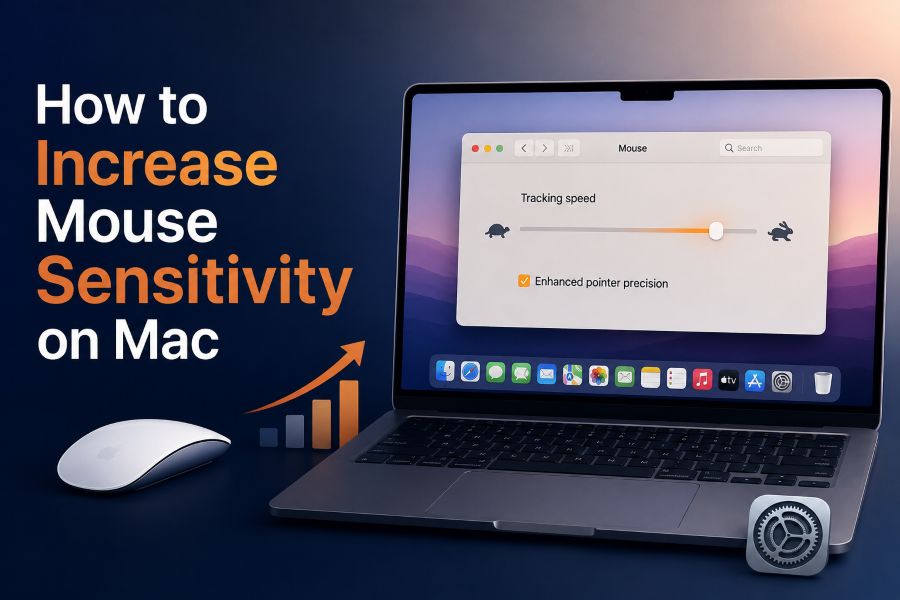
Learning how to increase mouse sensitivity on mac settings is useful when your pointer feels slow, heavy, or difficult to move across the screen. Whether you use a Magic Mouse, a wired mouse, a Bluetooth mouse, or a gaming mouse, the right sensitivity can make your Mac feel faster and more comfortable.
Mouse sensitivity controls how far the pointer moves when you move the mouse. If the setting is too low, you may need large hand movements to reach menus, windows, or tools. If it is too high, the pointer may feel jumpy and hard to control.
This guide explains the easiest ways to adjust mouse tracking speed on a Mac, when to use system settings, how third-party mouse software can help, and what to check if the pointer still feels slow. You will also learn practical tips for work, gaming, design, browsing, and daily use.
Mouse sensitivity on a Mac is mainly controlled through tracking speed. Tracking speed decides how quickly the pointer travels across the screen in response to physical mouse movement.
A higher tracking speed means the pointer moves farther with less hand movement. This can be helpful on large monitors, dual-screen setups, and desks with limited space.
A lower tracking speed gives more control for careful pointer placement. This can help with photo editing, design work, spreadsheets, and other tasks where accuracy matters more than speed.
Mac sensitivity can also be affected by mouse acceleration. Acceleration changes pointer movement based on how fast you move the mouse, so the same physical distance may not always produce the same pointer distance.
The best setting is not always the fastest one. A comfortable setup should let you reach any part of the screen quickly while still clicking small buttons, text fields, and icons accurately.
How Do You Increase Mouse Sensitivity On Mac
1. Open The Mouse Settings
The simplest way to increase mouse sensitivity on Mac is to open System Settings and choose the Mouse section. On most recent macOS versions, this is where you will find the tracking speed slider. Moving this slider to the right makes the pointer move faster across your screen.
2. Adjust The Tracking Speed Slider
The tracking speed slider is the main control for everyday mouse sensitivity. Increase it gradually instead of dragging it straight to the highest level. Small changes are easier to judge, and they help you find a setting that feels quick without becoming difficult to control.
3. Test Pointer Movement Immediately
After changing the slider, move your mouse across the desktop, open a few menus, and click small interface elements. Testing right away helps you notice whether the new speed improves comfort or creates overshooting, missed clicks, or wrist tension.
4. Check Scroll Speed Separately
Mouse sensitivity and scroll speed are related but not identical. Tracking speed affects pointer movement, while scroll settings affect how quickly pages, documents, and lists move. If your pointer feels right but scrolling feels slow, adjust scrolling separately instead of changing tracking speed again.
5. Reconnect A Bluetooth Mouse
If a Bluetooth mouse still feels delayed after increasing sensitivity, disconnect it and reconnect it. Wireless connection issues can make pointer movement feel sluggish even when tracking speed is set correctly. Fresh pairing can sometimes fix lag, stutter, or inconsistent movement.
6. Restart Apps That Feel Slow
Some apps may respond differently to mouse movement, especially games, design tools, virtual desktops, or remote desktop sessions. If the Mac pointer feels normal elsewhere but slow inside one app, restart that app and check its own mouse or input settings.
7. Fine Tune After A Full Day
A sensitivity setting can feel good for five minutes but tiring after hours of use. Try your new setting during normal work before deciding it is perfect. If your hand feels tense or you keep missing targets, reduce the speed slightly and test again.
Why Faster Mouse Sensitivity Helps Mac Users
1. A faster pointer can reduce repeated arm movement, especially when you use a large display or multiple monitors.
2. Higher sensitivity can make switching between apps, browser tabs, menus, and windows feel quicker during daily work.
3. People with limited desk space often benefit because they can move across the screen without lifting the mouse repeatedly.
4. A faster mouse can improve productivity when the setting still allows accurate clicking and careful selection.
5. Better sensitivity can reduce frustration because the Mac feels more responsive and less physically demanding to control.
Best Settings For Mac Mouse Sensitivity
- Start In The Middle: Begin near the middle of the tracking speed slider if you are unsure. This gives you a balanced baseline before making faster or slower adjustments.
- Increase Slowly: Move the slider one or two steps at a time. Large jumps can make the pointer feel unstable and make it harder to judge the real improvement.
- Match Your Screen Size: Large monitors usually need higher sensitivity than small laptop screens because the pointer has more space to cross.
- Consider Your Mouse Type: A Magic Mouse, gaming mouse, office mouse, and trackball can all feel different at the same Mac tracking speed setting.
- Check App Settings: Some apps, especially games and creative tools, include separate sensitivity controls that can override or modify the system feel.
- Avoid Maximum Speed At First: The highest setting may look efficient, but it can reduce accuracy. Use it only if you can still click small targets comfortably.
- Review Comfort: The right setting should feel fast and relaxed. If you feel wrist strain or keep correcting the pointer, the speed may be too high.
Common Mac Mouse Sensitivity Problems
1. Pointer Still Feels Too Slow
If the pointer still feels too slow after raising tracking speed, your mouse may have a low DPI setting. Some third-party mice require companion software to change DPI. Without that adjustment, macOS can only increase sensitivity within the limits reported by the device.
2. Pointer Moves Too Fast
When the pointer moves too fast, users often overshoot buttons, close the wrong tab, or struggle with precise selection. Lower the tracking speed slightly and test it with common tasks like selecting text, resizing windows, and clicking toolbar icons.
3. Movement Feels Inconsistent
Inconsistent movement can come from mouse acceleration, a dirty sensor, a reflective surface, or Bluetooth interference. Try a different mouse pad, clean the sensor area, and test the mouse on another surface before assuming the Mac setting is wrong.
4. Gaming Sensitivity Feels Wrong
Games often use their own sensitivity options, camera speed settings, or raw input behavior. Increase mouse sensitivity in the game first, then fine tune macOS tracking speed only if the pointer outside the game also feels slow or uncomfortable.
5. Scrolling Feels Slow Instead
Many people describe slow scrolling as low mouse sensitivity, but it is a different setting. If pages move too slowly while the pointer itself feels fine, adjust scroll behavior rather than tracking speed. This keeps pointer accuracy from becoming unnecessarily fast.
6. External Monitor Movement Feels Long
When you connect a large external monitor, the pointer must travel across more pixels. This can make the same mouse setting feel slower than it did on a MacBook screen. Increasing tracking speed usually solves the issue for wider desktop layouts.
7. Third Party Mouse Buttons Do Not Work
Extra mouse buttons and advanced sensitivity profiles may not work fully through macOS settings alone. For mice from brands that include configuration software, install the official utility when available and use it to adjust DPI, profiles, and button behavior.
Increasing mouse sensitivity on a Mac usually starts with the tracking speed slider in System Settings. For many users, this simple change makes the pointer faster, smoother, and easier to use across daily tasks.
If the system setting is not enough, check your mouse DPI, app-specific sensitivity, Bluetooth connection, scrolling behavior, and monitor setup. These factors can all affect how responsive the pointer feels.
The best setting is the one that balances speed with control. Adjust gradually, test in real work, and choose a sensitivity level that helps you move quickly without sacrificing accuracy.
FAQs About How To Increase Mouse Sensitivity Mac
How Do I Increase Mouse Sensitivity On A Mac?
Open System Settings, go to Mouse, and move the tracking speed slider to the right. Test the pointer after each change so you can find a speed that feels faster but still accurate for clicking, dragging, selecting text, and switching between windows.
Why Is My Mac Mouse So Slow?
Your Mac mouse may feel slow because tracking speed is set low, the mouse has a low DPI setting, the sensor is dirty, or the surface is not ideal. Bluetooth lag, external monitors, and app-specific settings can also make pointer movement feel slower.
Can I Increase Magic Mouse Sensitivity?
Yes, Magic Mouse sensitivity can be increased through the Mouse settings in macOS. Adjust the tracking speed slider and test normal actions like opening menus, moving between corners, and selecting text. You can also review scrolling settings if page movement feels slow.
Is Mouse Tracking Speed The Same As DPI?
No, tracking speed is the macOS pointer setting, while DPI is a hardware-level mouse sensitivity measurement. Some third-party mice let you change DPI through buttons or software. Using both settings together gives more control over speed and precision.
Why Does My Mouse Feel Different In Games?
Games often have their own sensitivity, camera speed, smoothing, or acceleration settings. If your mouse feels normal on the desktop but wrong in a game, adjust the game settings first. Then change macOS tracking speed only if the whole system feels slow.
What Is The Best Mouse Sensitivity For Mac?
The best mouse sensitivity depends on your screen size, mouse type, hand movement, and work style. A good setting lets you cross the screen comfortably while still clicking small targets accurately. Most users should increase gradually and avoid choosing maximum speed immediately.