
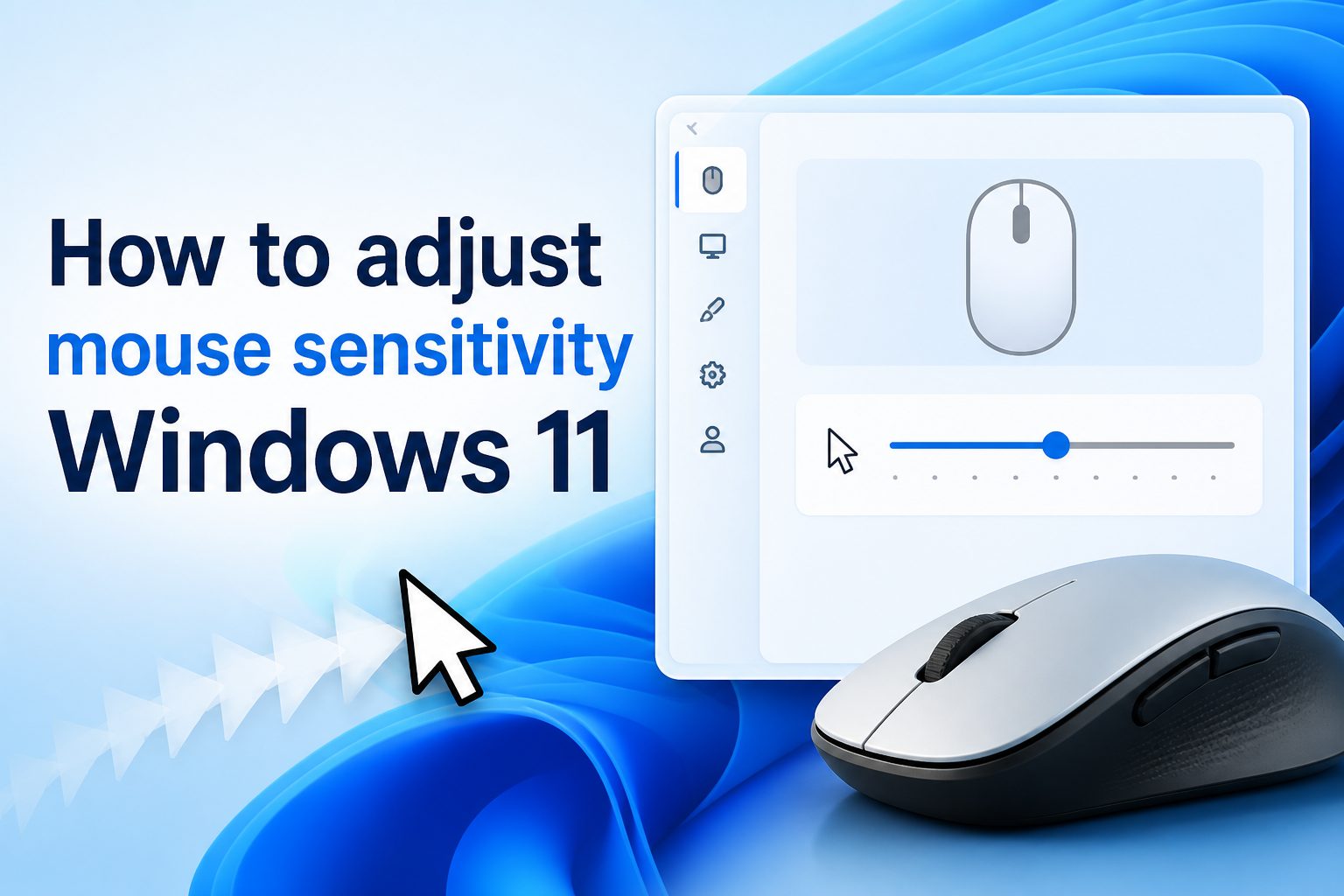
How to adjust mouse sensitivity Windows 11 is a common question for anyone whose pointer feels too fast, too slow, jumpy, or uncomfortable during everyday computer use. Mouse sensitivity controls how far your pointer moves on the screen when you move the physical mouse, and getting it right can make browsing, gaming, design work, spreadsheet editing, and general navigation feel much smoother.
Windows 11 gives you several ways to change mouse speed, including the Settings app, Control Panel, touchpad settings for laptops, and sometimes dedicated mouse software from the device manufacturer. The best option depends on whether you use a basic office mouse, a gaming mouse, a Bluetooth mouse, or a laptop touchpad.
A good sensitivity setting is not always the fastest one. The goal is control. If the pointer overshoots buttons, misses small icons, or makes precise work difficult, lowering the speed can help. If you constantly lift and drag the mouse across the desk, increasing sensitivity may be better.
This guide explains what mouse sensitivity means, why it matters, how to change it in Windows 11, which mistakes to avoid, and how to choose practical settings for work, gaming, accessibility, and daily comfort.
Mouse sensitivity in Windows 11 refers to how quickly the pointer moves across the screen in response to your hand movement. A higher setting moves the pointer farther with less physical motion, while a lower setting requires more movement for the same distance on screen.
This setting is closely related to pointer speed, but it is not always the same as mouse DPI. DPI is usually controlled by the mouse hardware or its companion software, while pointer speed is controlled inside Windows. Both can affect how the cursor feels.
For most people, the default Windows 11 pointer speed is usable, but it is not perfect for every desk setup, screen size, or task. A large monitor, dual-monitor setup, compact desk, or high-DPI gaming mouse can all make the default feel wrong.
Small changes often work better than dramatic changes. Moving the sensitivity slider one or two steps and testing it for several minutes usually gives a more reliable result than jumping straight to the highest or lowest setting.
The right mouse sensitivity should let you move across the screen comfortably while still landing accurately on buttons, menus, text fields, and small controls. If you can work without thinking about the pointer, the setting is probably close to right.
How Do You Change Mouse Sensitivity In Windows 11
1. Open Windows Settings
The easiest way to adjust mouse sensitivity in Windows 11 is through the Settings app. Press the Start button, open Settings, and choose Bluetooth and devices. From there, select Mouse. This area contains the main pointer speed control used by most Windows 11 users.
2. Use The Mouse Pointer Speed Slider
Inside the Mouse settings page, look for the mouse pointer speed slider. Moving it to the right makes the pointer faster, while moving it to the left makes it slower. Adjust it gradually, then move the mouse around your desktop to judge comfort and accuracy.
3. Test Movement On Real Tasks
Do not test sensitivity only by moving the pointer in circles. Try selecting text, clicking small icons, opening menus, dragging a window, and moving between corners of the screen. Real tasks reveal whether the setting is actually practical for your daily Windows 11 use.
4. Check Additional Mouse Settings
Windows 11 also includes additional mouse options that open older Control Panel settings. These settings may include pointer options, double-click speed, wheel behavior, and visibility features. They are useful when the basic Settings slider does not give enough control.
5. Review Enhanced Pointer Precision
Enhanced pointer precision changes how pointer movement responds to speed. Some users like it because it can make everyday navigation feel smoother. Others, especially gamers, often disable it because it can make movement less predictable. Test both options before deciding.
6. Apply Device Software Settings
If you use a gaming or productivity mouse, the manufacturer’s software may include DPI levels, profiles, acceleration options, and button assignments. These settings can override or combine with Windows pointer speed, so review them when Windows changes alone do not feel right.
Why Mouse Speed Matters In Windows 11
1. Accurate pointer movement helps you click buttons, select text, resize windows, and work with small interface elements without repeated corrections.
2. Comfortable sensitivity can reduce unnecessary wrist and arm movement, especially during long work sessions or when using multiple monitors.
3. A properly tuned pointer makes laptop, desktop, and external monitor setups feel more predictable because movement matches the available screen space.
4. Lower sensitivity can improve precision for editing, design, spreadsheets, and tasks where tiny movements matter more than fast navigation.
5. Higher sensitivity can help users with limited desk space or large displays move across the screen with less physical effort.
Key Mouse Sensitivity Settings To Check
- Pointer Speed: This is the main Windows 11 control for cursor movement. It changes how quickly the pointer travels across the screen when you move the mouse.
- Enhanced Pointer Precision: This option adds acceleration behavior. It can help casual users, but it may feel inconsistent for gaming or precision-heavy work.
- Mouse DPI: DPI is controlled by the mouse hardware or software. A high DPI setting can make the pointer feel fast even if Windows pointer speed is moderate.
- Scroll Speed: Scroll speed does not change pointer movement, but it affects how pages, documents, and lists respond to the mouse wheel.
- Touchpad Sensitivity: Laptop users should adjust touchpad sensitivity separately because touchpad behavior is controlled in a different Windows 11 settings area.
- App Profiles: Some mouse software lets you create separate profiles for games, design apps, browsers, or office work, which can be useful when one setting does not fit every task.
Best Practices For Windows 11 Mouse Sensitivity
1. Start With Small Adjustments
Move the pointer speed slider in small steps instead of making extreme changes. Your hand and eyes need time to adapt, and small adjustments make it easier to identify what actually improves control. Test each setting for several minutes before changing it again.
2. Balance Speed With Accuracy
A fast pointer may feel efficient at first, but it becomes frustrating if you regularly miss targets. A slower pointer may feel precise, but it can waste effort on large screens. Choose the setting that lets you move quickly without losing reliable control.
3. Match Sensitivity To Screen Size
Large monitors and multi-monitor setups often need slightly higher pointer speed because the pointer must travel farther. Smaller laptop screens may feel better with moderate or lower sensitivity. The best Windows 11 mouse setting should match the amount of screen space you use.
4. Keep Gaming Settings Separate
If you play games, avoid judging your Windows desktop sensitivity only by gaming performance. Many games have their own sensitivity settings, and gaming mice often have DPI profiles. Keep desktop navigation comfortable, then tune each game separately for aim and control.
5. Avoid Constant Changes
Changing sensitivity every day can make your pointer feel inconsistent and train your muscle memory poorly. Once you find a comfortable setting, keep it stable unless you change your mouse, desk surface, monitor size, or main type of computer work.
6. Test On Your Normal Desk Surface
Mouse pads, glossy desks, rough surfaces, and small work areas can all affect how movement feels. Test sensitivity where you actually use the computer. A setting that feels good on one surface may feel slippery, slow, or uneven on another.
Adjusting mouse sensitivity in Windows 11 is simple, but choosing the right setting takes a little testing. The Settings app is the best starting point, while Control Panel options and mouse software can help when you need more control.
The most useful setting is the one that feels natural during real tasks. Try clicking small buttons, selecting text, scrolling documents, and moving between windows before deciding whether the pointer is too fast or too slow.
For most users, a moderate pointer speed with careful testing works best. Gamers, designers, spreadsheet users, and people with accessibility needs may benefit from more specific adjustments.
Once the mouse feels predictable, comfortable, and accurate, leave the setting alone for a while. Consistency helps your hand movement become more natural and makes Windows 11 easier to use every day.
FAQs About How To Adjust Mouse Sensitivity Windows 11
How Do I Quickly Adjust Mouse Sensitivity In Windows 11?
Open Settings, choose Bluetooth and devices, select Mouse, and move the mouse pointer speed slider. Move it right for faster movement or left for slower movement. Test the setting by clicking icons, selecting text, and moving between windows before deciding.
Is Mouse Sensitivity The Same As DPI?
No. Mouse sensitivity in Windows 11 usually means pointer speed inside the operating system. DPI is a hardware setting controlled by the mouse or its software. Both affect movement, so changing either one can make the pointer feel faster or slower.
Should I Turn Off Enhanced Pointer Precision?
It depends on how you use your computer. Enhanced pointer precision can feel helpful for general browsing and office work because it adds acceleration. Gamers and precision users often turn it off because they prefer consistent movement that does not change based on speed.
Why Does My Mouse Feel Too Fast In Windows 11?
Your pointer speed may be set too high, your mouse DPI may be high, or enhanced pointer precision may be affecting movement. Lower the Windows pointer speed first, then check your mouse software if the cursor still feels too fast or difficult to control.
Can I Set Different Mouse Sensitivity For Different Apps?
Windows 11 does not provide detailed per-app mouse sensitivity settings by default. However, many gaming and productivity mice include companion software that supports profiles. Those profiles can automatically change DPI, buttons, and sensitivity behavior when specific apps or games open.
What Is The Best Mouse Sensitivity For Windows 11?
There is no single best setting for everyone. A good setting lets you move across the screen comfortably while still clicking small targets accurately. Start near the default, adjust gradually, and choose the option that feels stable during your normal work.